Join the same Wi‑Fi
Turn on your TV and connect it to the same Wi‑Fi as your iPhone or iPad.

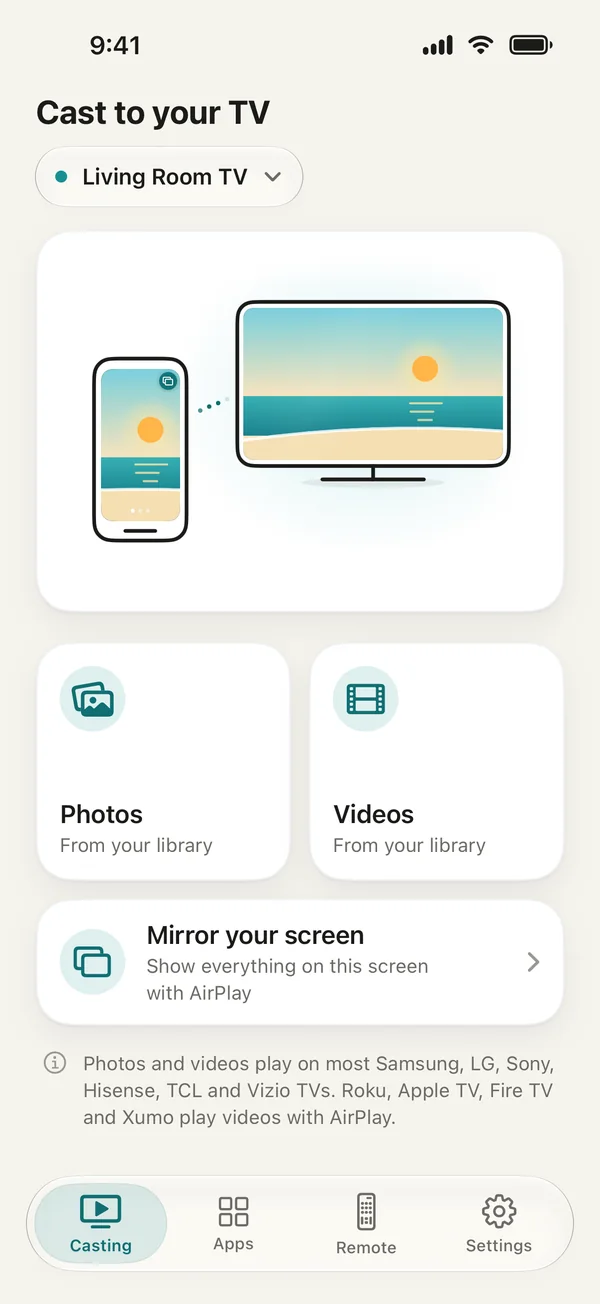
TV Cast finds the TVs on your Wi‑Fi in seconds and sends pictures and videos from your iPhone or iPad straight to the one you pick — or mirrors your whole screen with AirPlay.
Works on most models of these TVs. Your TV and your iPhone or iPad just need to be on the same Wi‑Fi. Some streaming sticks can’t receive casts.
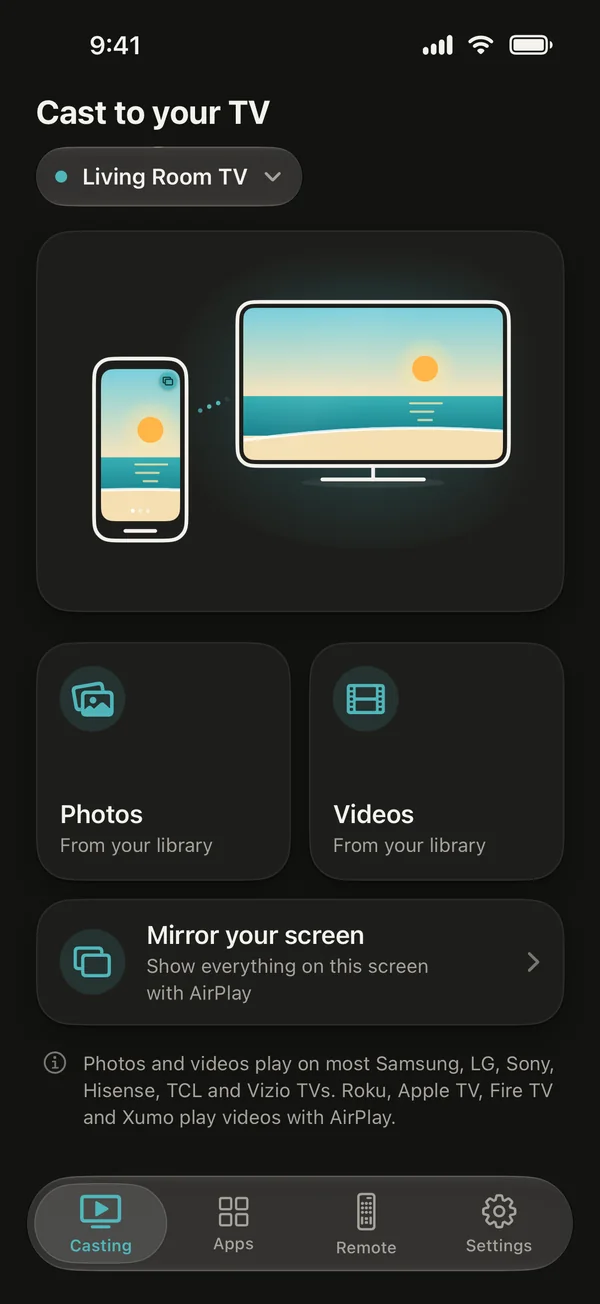
Pick photos or videos from your library and they play on the TV — with nothing to install on the TV.
What a TV can play depends on its brand, model and settings — some TVs ask you to allow casting the first time.
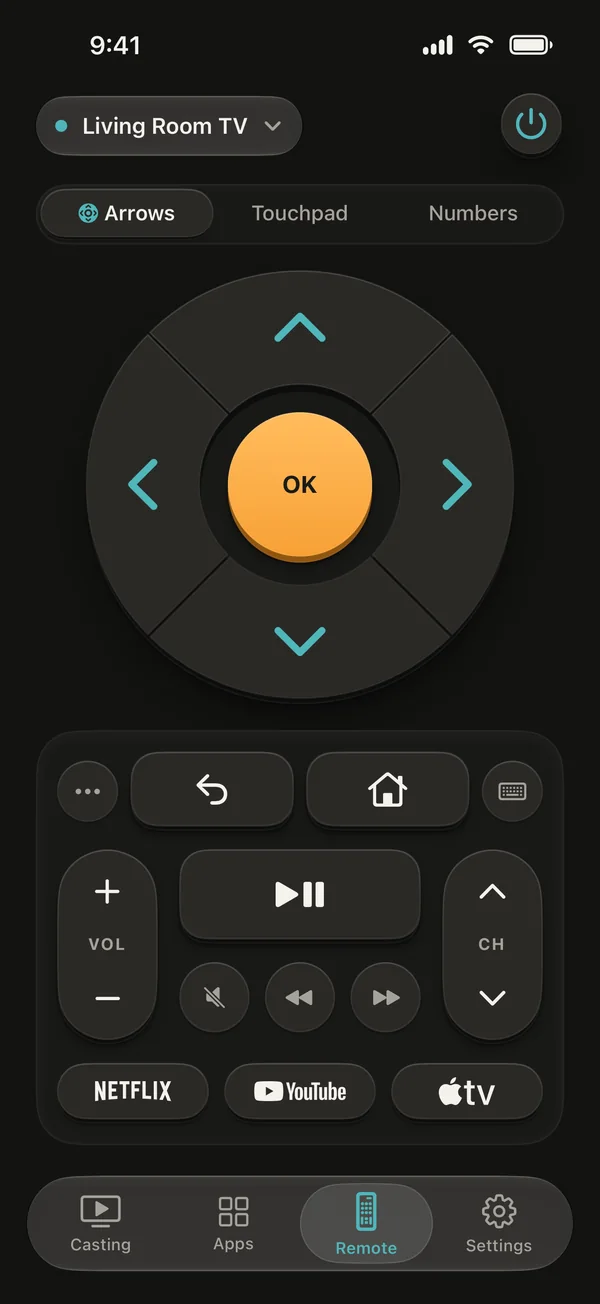
The Remote tab is one tap away — for picking a show, changing the volume or turning the TV on.
A ring with OK in the middle, just like the remote on your couch. Hold an arrow and it keeps going.
Swipe to move and tap for OK — quick for long menus and big grids of shows.
A number pad for channel numbers, with EXIT and delete keys on TVs that use them.
Controls Samsung, LG, Roku, Fire TV, Google TV, Android TV, Apple TV, Vizio, VIDAA and Xumo TV — including TVs from Sony, TCL, Hisense, Toshiba, Philips, Panasonic, Sharp, Insignia, onn, Element, Pioneer and Westinghouse that run these systems. Typing, number keys, opening apps and turning the TV on work on models that support them.
No account to create and nothing to install on your TV.
Turn on your TV and connect it to the same Wi‑Fi as your iPhone or iPad.
Open TV Cast, tap Find my TV and allow Local Network access so the app can see your TV.
Choose it at the top of the Casting tab, then tap Photos or Videos. The first time, some TVs ask you to select Allow or enter a code.
Check that TV Cast works with your TV before you pay for anything.
Everything you need to get started
Cast, mirror and control, without limits
Some plans start with a free trial. Lifetime is a one‑time purchase.
Prices are shown in the app before you buy. Subscriptions renew automatically unless canceled at least 24 hours before the end of the current period. Manage or cancel anytime in your Apple Account settings.
Photos and videos play on most Samsung, LG, Sony, Hisense, TCL and Vizio TVs. Roku, Apple TV, Fire TV and Xumo TVs play videos with AirPlay — to show photos on them, mirror your screen instead. Some TVs ask you to allow casting in their settings first, and some streaming sticks can’t receive casts.
Open the Casting tab, tap Mirror your screen, then Start mirroring and pick your TV in the AirPlay list. Mirroring needs an Apple TV or a smart TV with AirPlay built in, on the same Wi‑Fi as your device.
No. TV Cast uses the casting features already built into most smart TVs, so there’s nothing to install on the TV and no cable to plug in.
No. You choose photos and videos in Apple’s photo picker, and iOS gives TV Cast only the items you pick. They go from your device to your TV over your Wi‑Fi — not to us.
That’s how TV Cast finds your TV, casts to it and sends it commands over your Wi‑Fi. Without it, the app can’t see your TV. You can turn it on or off anytime in iOS Settings ▸ TV Cast.
No. TV Cast works over your Wi‑Fi, so your iPhone or iPad has to be on the same Wi‑Fi network as the TV — it won’t work over mobile data or from another house. It doesn’t use infrared, so it works on any iPhone or iPad.
On your iPhone or iPad, open Settings, tap your name, then Subscriptions. Choose TV Cast and tap Cancel Subscription. To avoid being charged, cancel at least 24 hours before the trial or current period ends. Deleting the app doesn’t cancel a subscription.
There’s no account and no ads. The TVs you pair with are saved on your device, and the photos and videos you cast go only to your TV. The app collects usage and crash data and purchase records to run and improve the app — the Privacy Policy has the details.
Free to download for iPhone and iPad. Find your TV in seconds and start casting.
Download on theApp Store